
If you want to improve product navigation, setting up a WooCommerce category filter sidebar is one of the most effective ways to help customers browse your store. It allows users to quickly filter products by category directly from the sidebar, making the shopping experience faster and more organized.
You can set up a WooCommerce product category filter using built-in widgets or modern block-based layouts, depending on your theme. For more control and advanced filtering, you can also use AJAX-based solutions. This guide walks you through each method step by step so you can choose the best setup for your store.
Quick Tips Before You Start
Before setting up your sidebar filters, make sure your store structure is ready. A properly organized setup ensures your filters work smoothly and display accurate results.
Key Things to Check
- Organize product categories properly: Create a clean category structure so filters can display logical groupings.
- Assign products to correct categories: Products must be linked to categories, otherwise filters will not return results.
- Use a sidebar-supported theme layout: Ensure your theme has a visible sidebar area for placing filters.
- Start with the default method for simplicity: Built-in WooCommerce filters are enough for basic setups.
- Use an AJAX filter plugin for advanced control: This helps create a faster WooCommerce AJAX product filter sidebar experience.
- Test filters across pages and devices: Always check shop, category, and mobile views to confirm everything works correctly.
Where to Place Sidebar Filters in WooCommerce?
Choosing the right placement for your WooCommerce category filter sidebar directly impacts usability and how easily customers can find products. A well-placed filter improves navigation and reduces friction during browsing.
Left Sidebar (Most Common)
- Best suited for desktop users and large screens
- Follows standard eCommerce layout patterns
- Helps users quickly access the WooCommerce product category filter while browsing
Note: This is the most recommended placement for stores with multiple categories and large product catalogs.
Right Sidebar
- Works well for design-focused or minimal layouts
- Keeps the main content visually dominant
- Suitable for stores with fewer categories
Note: Although less common, this layout can still support effective filtering when used properly.
Collapsible Sidebar (Mobile)
- Essential for mobile-friendly design
- Saves screen space and keeps layout clean
- Allows users to open filters only when needed
Note: This setup is especially useful for creating a smooth WooCommerce AJAX product filter sidebar experience on smaller devices.
How to Set Up Sidebar Category Filters in WooCommerce?
WooCommerce allows you to create a WooCommerce category filter sidebar using multiple methods depending on your store setup and customization needs. The most common approach is using built-in WooCommerce widgets, while advanced setups use filter plugins for better control and performance.
Each method below is explained step by step so you can easily implement a WooCommerce product category filter that fits your store layout. Whether you need a simple sidebar filter or a more advanced AJAX-based system, these methods will help you set it up correctly.
Method 1: Set Up Sidebar Category Filters Using Default WooCommerce
This method is ideal for basic setups where you want to create a simple WooCommerce category filter sidebar without using additional plugins. It works well for small to medium stores.
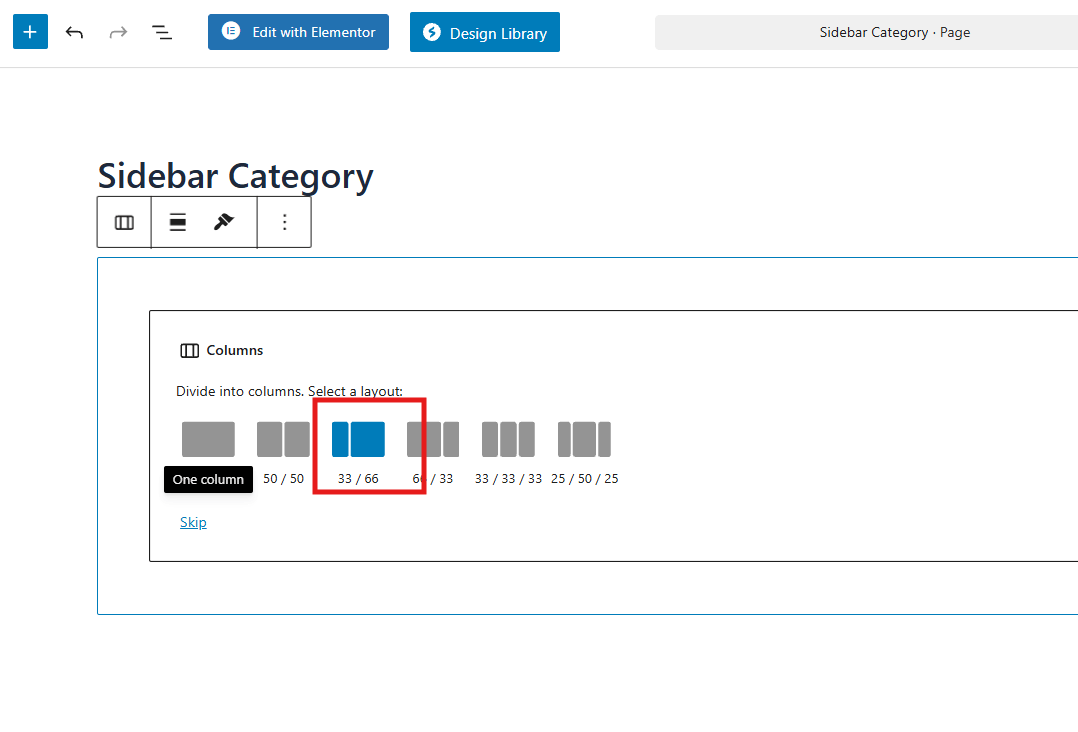
Step 1: Create a Page and Add Column Layout
First, create a layout where filters and products can appear side by side. This helps separate the sidebar from the product display area.
- Go to WordPress Dashboard → Pages
- Click Add New
- Click the + icon and search for Columns block
- Select a 33/66 column layout
- Use the left column for filters
Step 2: Add Product Categories List in Sidebar
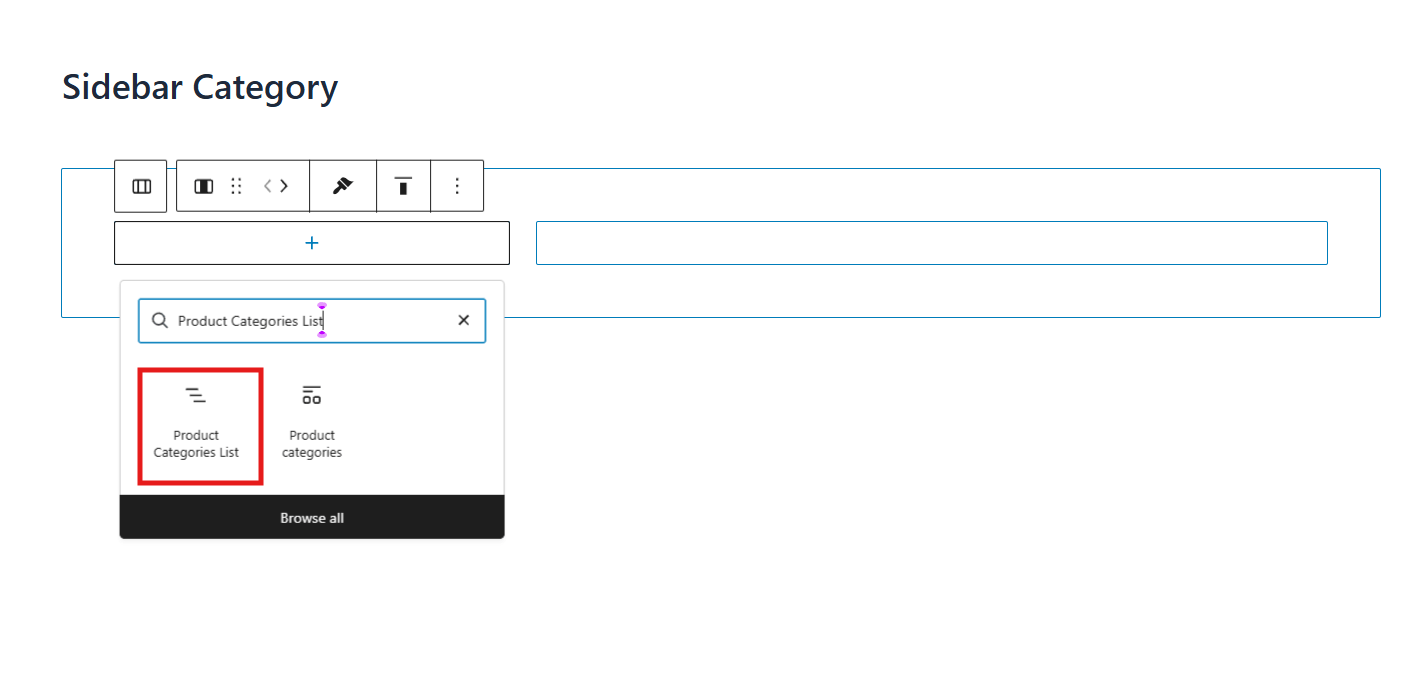
Now, add categories to the sidebar using the default WooCommerce block.
- Click the + icon inside the left column
- Search for Product Categories List
- Add the block
Your WooCommerce product category filter will now appear in the sidebar automatically.
Step 3: Display Products Using Shortcode
Next, you need to show products on the right side.
- Click the + icon in the right column
- Add a Shortcode block
- Paste:
[products] - Click Publish
Note: Make sure there are no extra brackets or formatting errors.
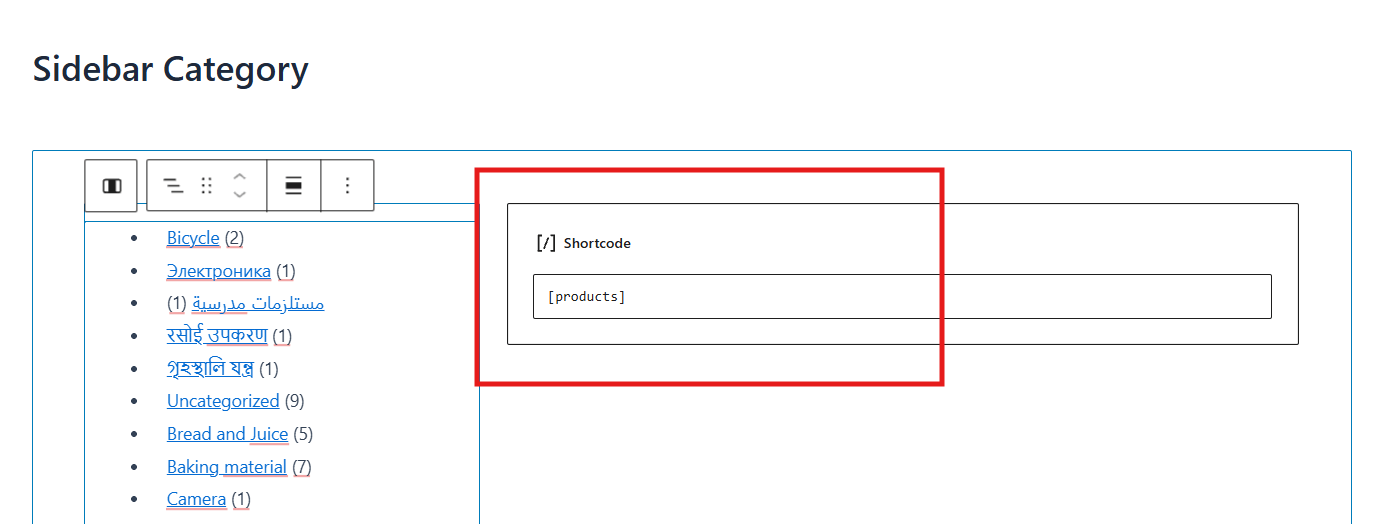
Result: You now have a working sidebar filter with product listings. This setup is simple and effective for basic filtering needs.
Method 2: Set Up Sidebar Category Filters Using a Plugin
If you want more control, flexibility, and performance, using a plugin is the best option. This method is ideal for creating an advanced WooCommerce AJAX product filter sidebar.
Step 1: Install the Filter Plugin
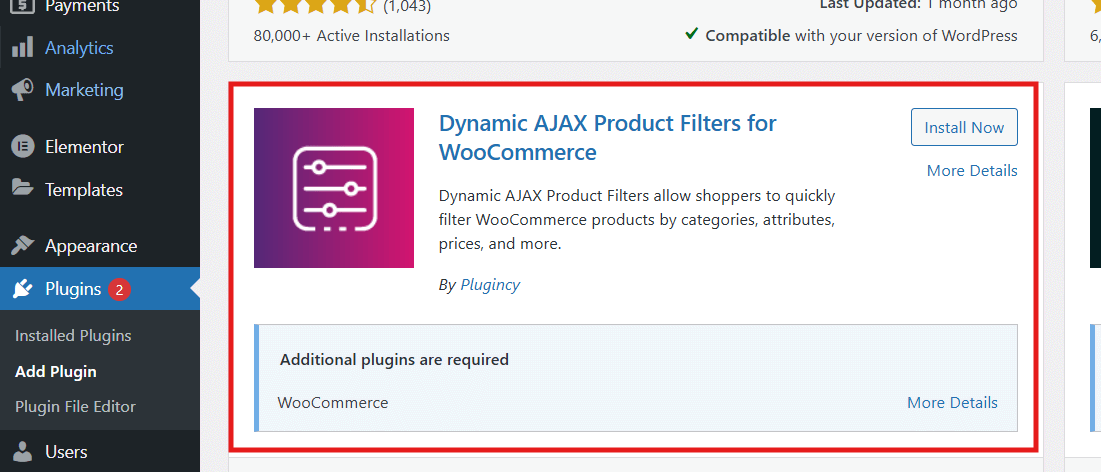
For this setup, you can use a dynamic AJAX filter plugin.
Free Version Installation:
- Go to Plugins → Add New
- Search for Dynamic AJAX Product Filters for WooCommerce
- Click Install Now → Activate
Note: Click Install Now and then click Activate.
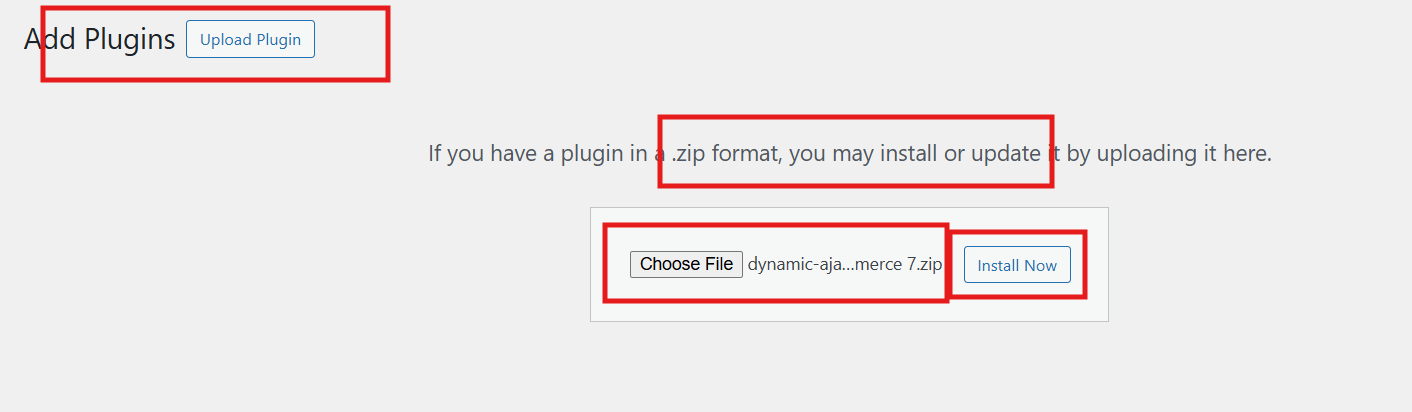
Pro Version Installation
- Go to Plugins → Add New → Upload Plugin
- Upload the plugin ZIP file
- Click Install → Activate
Note: Click Install Now and then Activate.
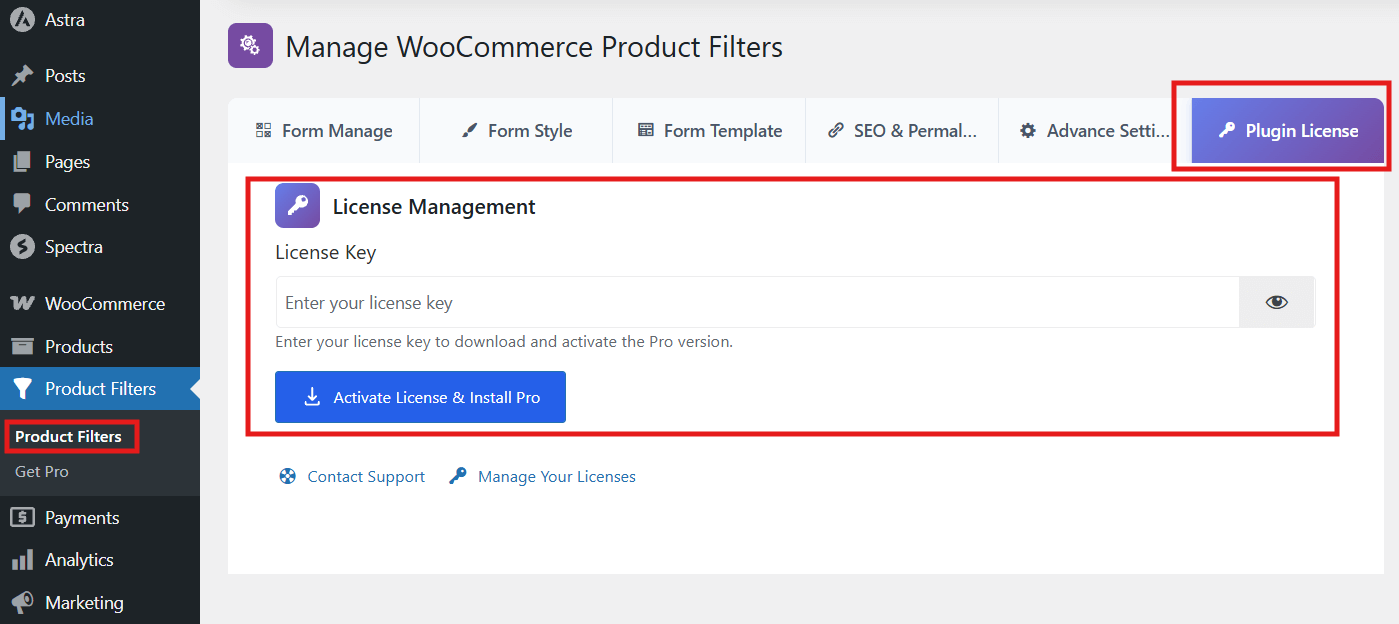
Activate License (Pro Only)
- Go to Product Filter → Plugin License
- Enter your license key
- Activate the plugin
Note: Click Install and Update Pro to complete activation.
Step 2: Add Sidebar Category Filter Using Widgets
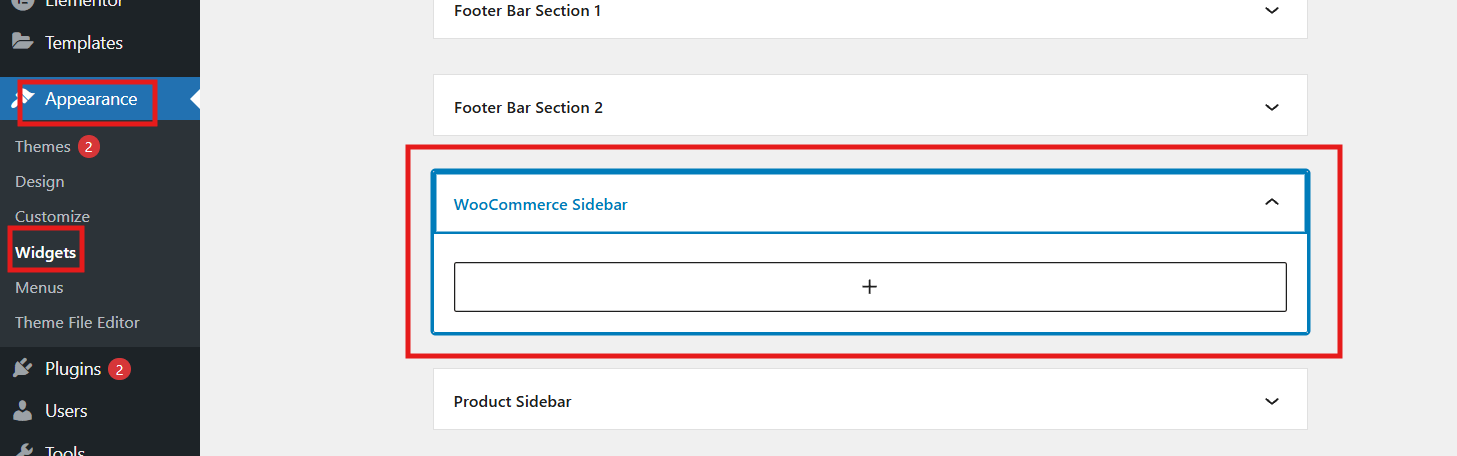
If your theme supports widgets:
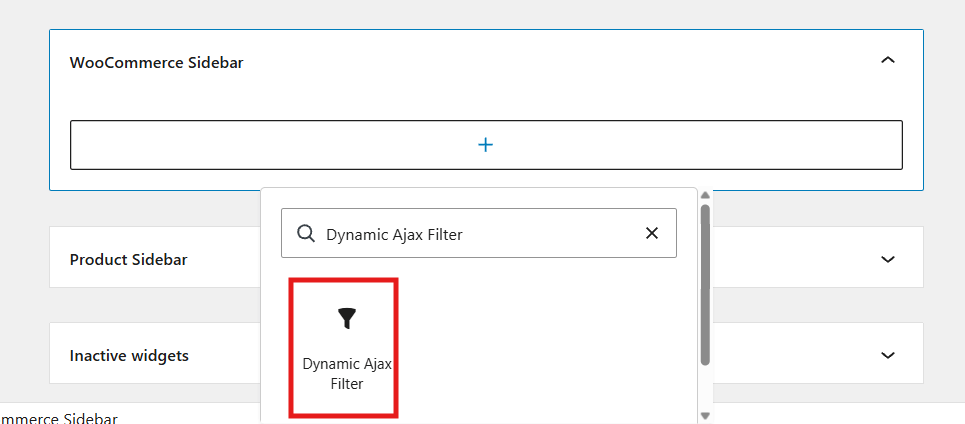
- Go to Appearance → Widgets
- Open WooCommerce Sidebar
- Click + Add Block
- Search for Dynamic AJAX Filter
- Add and click Update
Step 3: Add Sidebar Filter Using Page Layout
You can also place filters manually using a layout system.
- Create a new page
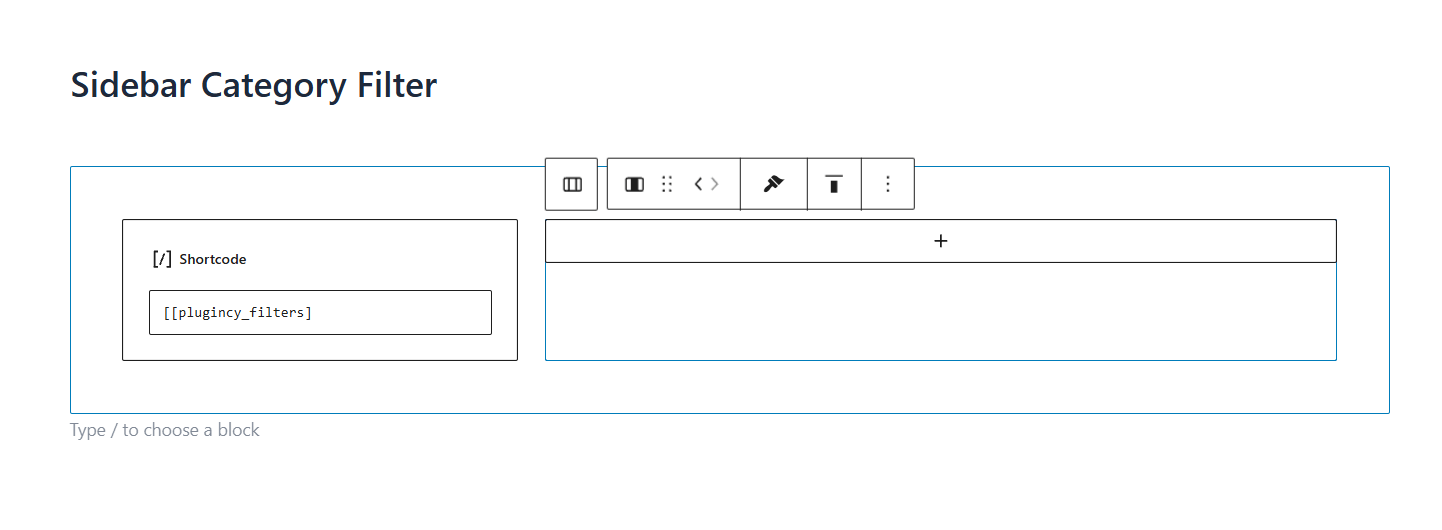
- Add a Columns block (33/66)
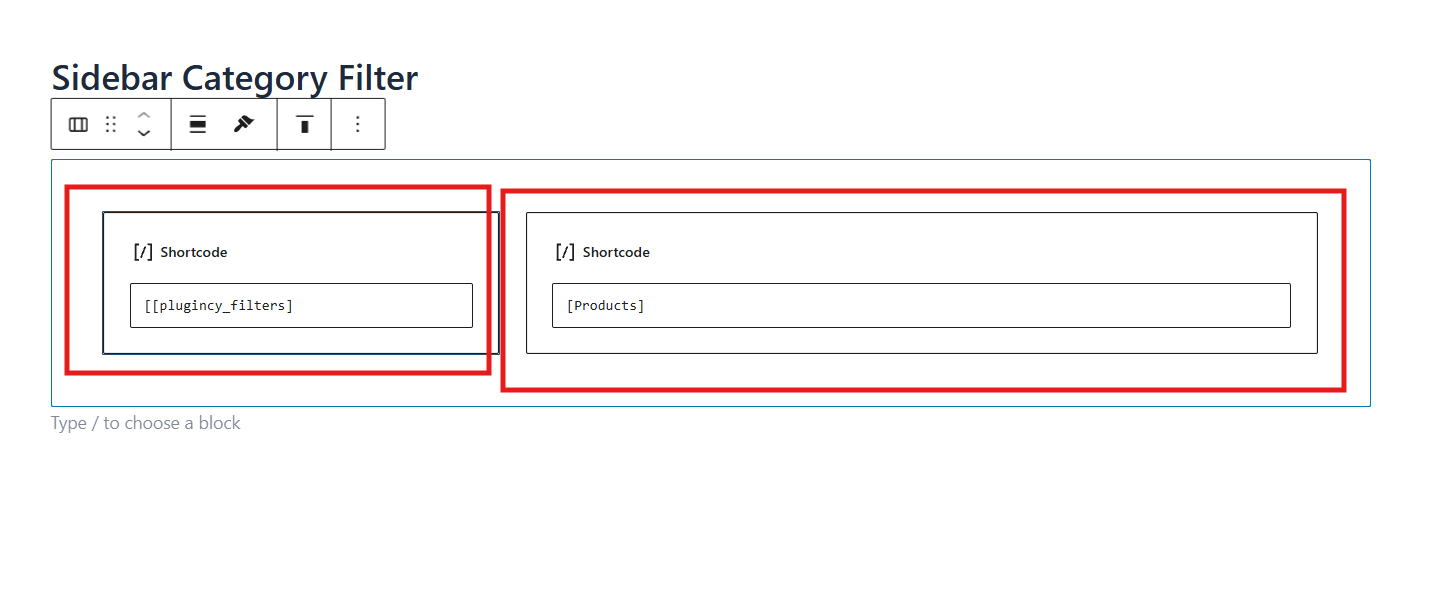
- In the left column, add a Shortcode block
- Paste:
[plugincy_filters]
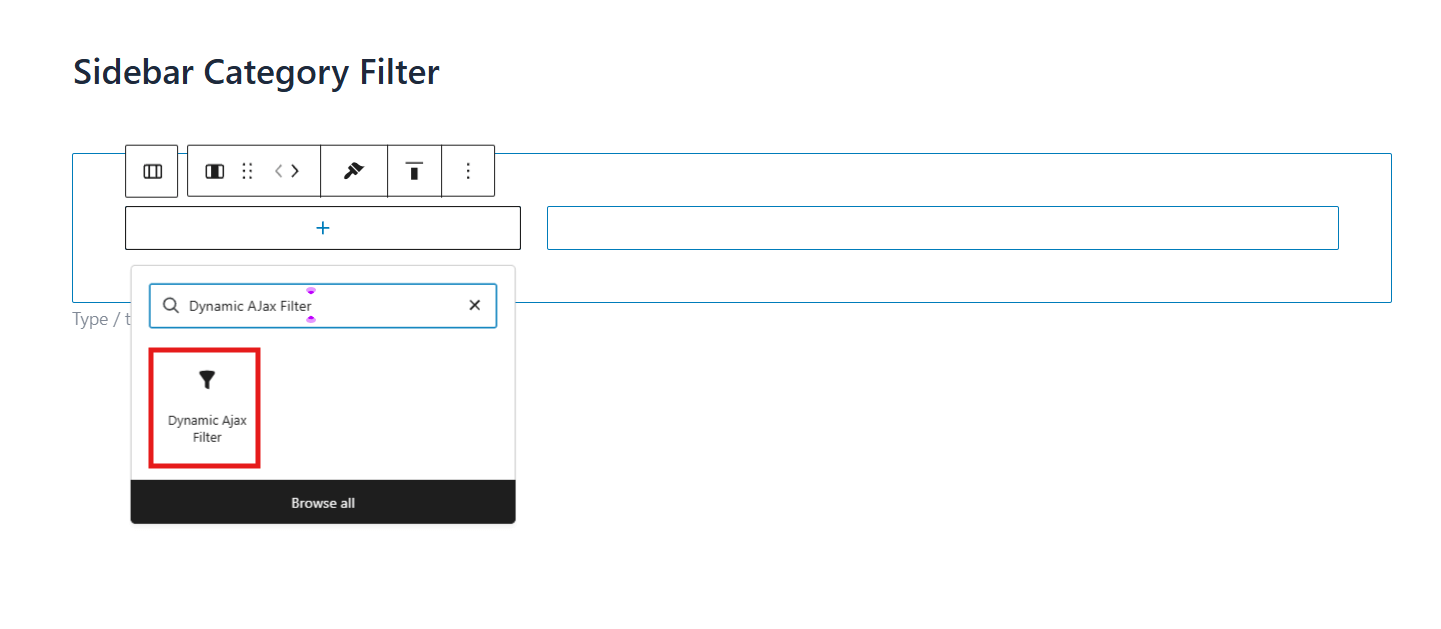
Note: Alternatively, use the Dynamic AJAX Filter block
Add Product Display
- In the right column, add another Shortcode block
- Paste:
[products] - Publish the page
Step 4: Enable Category Filter in Plugin Settings
If filters don’t appear, enable them manually:
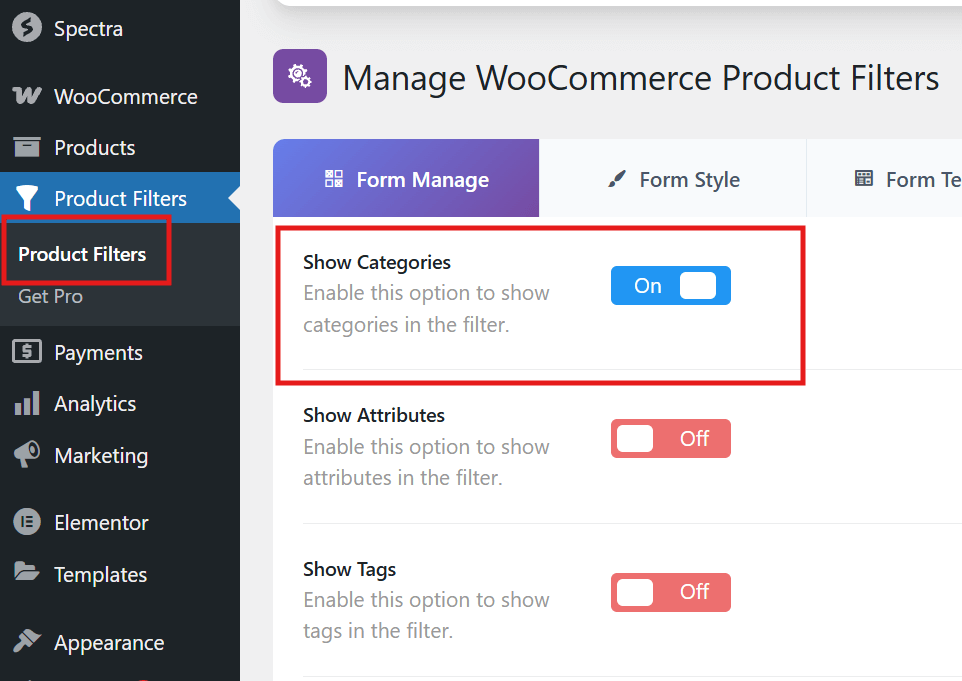
- Go to Product Filters → Form Manage
- Find Show Categories option
- Toggle it ON
- Click Save Changes
Final Check:
- Reload your shop or page
- Confirm sidebar filters are visible
- Test filtering functionality
Which Method Should You Choose?
Choosing the right setup depends on how much control you need over your WooCommerce category filter sidebar and how advanced your store requirements are. While the default method works for basic filtering, using a plugin gives you more flexibility, better performance, and a smoother user experience.
Quick Comparison
| Method | Best For | Ease Level | Flexibility |
|---|---|---|---|
| Default WooCommerce Blocks | Simple WooCommerce product category filter setup | Easy | Low |
| AJAX Filter Plugin | Advanced filtering, real-time updates, and better customization | Easy to Medium | High |
When to Choose Default Method?
- You have a small product catalog
- You only need basic category filtering
- You prefer a quick setup without plugins
- Your theme already supports sidebar widgets
This method is simple but limited in features and scalability.
When to Choose Plugin Method?
- You want a fast WooCommerce AJAX product filter sidebar
- Your store has many products or categories
- You need advanced filtering options (price, attributes, tags)
- You want better control over layout and design
This approach is more powerful and better suited for growing stores.
Recommendation: If you are just starting, the default method is enough. However, as your store grows, switching to an AJAX-based filtering system will improve performance, usability, and overall customer experience.
Common Problems With Sidebar Category Filters in WooCommerce
Even after setting up a WooCommerce category filter sidebar, you may face issues related to layout, configuration, or plugin compatibility. Understanding these problems early helps you fix them quickly without unnecessary trial and error.
Filters Not Updating Products
Sometimes the filter appears active, but the product list does not change. This usually happens due to AJAX issues, JavaScript errors, or theme and plugin conflicts affecting dynamic filtering.
Solution: Check plugin settings, clear cache, test with a default theme, and disable conflicting plugins to identify the exact issue.
Empty or Incorrect Category Results
Filters may return empty or incorrect results when products are not assigned properly or category data is outdated. This is a common reason behind WooCommerce filter not showing products.
Solution: Review product-category assignments and regenerate category counts or product lookup data.
Sidebar Hidden or Missing on Pages
The sidebar may not appear if your page uses a full-width layout or if your theme hides sidebars on certain devices like mobile.
Solution: Switch to a sidebar-enabled layout and check theme display settings for desktop and mobile views.
Poor Filter Layout and Usability
A cluttered or poorly structured category list can make your sidebar filter hard to use, reducing engagement and product discovery.
Solution: Simplify your category structure, remove unnecessary options, and organize categories in a clear hierarchy.
Speed and Plugin Conflicts
Filters may load slowly or stop working when caching, heavy queries, or incompatible plugins interfere with the filtering process. This often affects WooCommerce AJAX product filter sidebar performance.
Solution: Clear cache, reduce plugin conflicts, and optimize your setup for better performance.
Frequently Asked Questions
This section is optimized for Featured Snippets, AI Overview, and long-tail queries, helping you capture additional search traffic.
How do I add category filters to the WooCommerce sidebar?
You can add category filters by going to Appearance → Widgets or the block editor and placing the Product Categories block in your sidebar. This creates a basic WooCommerce category filter sidebar for product navigation.
Why are WooCommerce sidebar filters not showing?
This usually happens due to theme layout issues, missing category assignments, or sidebar settings not being enabled. Make sure your theme supports sidebars and products are properly categorized.
Can I create advanced sidebar filters in WooCommerce?
Yes, you can use a WooCommerce AJAX product filter sidebar plugin to add advanced filtering options like price, attributes, tags, and real-time filtering without page reload.
What is the best way to improve WooCommerce category filtering?
The best approach is to keep your category structure clean, assign products correctly, and use AJAX filtering for better performance and user experience.
Do sidebar filters work on mobile devices?
Yes, but they should be optimized using collapsible or slide-out layouts. This ensures filters are easy to access without affecting the mobile browsing experience.
Why are my filters not updating products?
This is often caused by caching issues, JavaScript errors, or plugin conflicts. Clearing cache and testing with a default theme usually resolves the issue.
Conclusion
Setting up a WooCommerce category filter sidebar is one of the most effective ways to improve product navigation and help customers find what they need quickly. Whether you choose the default method or an advanced plugin-based approach, a properly configured filter system enhances both usability and overall store performance.
For simple stores, the default WooCommerce setup works well. However, for better speed, flexibility, and scalability, using a WooCommerce AJAX product filter sidebar solution is the smarter long-term choice.
By following the right setup method, organizing your categories properly, and avoiding common issues, you can create a smooth and efficient filtering experience that improves engagement and increases conversions.