
If your WooCommerce category filter not working, your customers may not see the right products on your shop page. This can lead to empty filter results, missing items, or filters that fail to load properly.
In many cases, this issue is related to visibility settings, caching conflicts, or plugin compatibility problems. It can also happen when WooCommerce filter not showing products due to incorrect category setup or AJAX issues. Fortunately, you can resolve it quickly by following the right troubleshooting steps.
Quick Fix: WooCommerce Category Filter Not Working
If your WooCommerce category filter not working, follow these quick steps to fix the issue fast before going into deeper troubleshooting.
Try These First:
- Check product visibility: Make sure products are set to Public and visible in both Shop and Search results. Hidden products will not appear in filters.
- Confirm category assignment: Ensure each product is assigned to the correct category. Filters rely on proper category mapping to show results.
- Clear cache (plugin, CDN, browser): Caching often causes outdated filter results. Clear your WordPress cache, CDN cache, and browser cache.
- Re-save permalinks: Go to Settings → Permalinks and click Save Changes without modifying anything. This refreshes URL structures.
- Disable conflicting plugins: Temporarily deactivate other plugins to check if a conflict is causing the filter issue.
- Regenerate product lookup tables: Go to WooCommerce → Status → Tools and regenerate lookup tables to fix missing or outdated product data.
Quick Result Tip: In most cases, these steps resolve WooCommerce filter not showing products or broken category filters within a few minutes.
Why WooCommerce Category Filter Is Not Working?
If you are facing a WooCommerce category filter not working issue, it usually means your store is unable to correctly fetch or display products based on selected categories. This can result in empty filter results, missing products, or filters that keep loading without returning data on the shop page.
In many cases, this problem is closely related to WooCommerce product filter not working, especially when filters depend on dynamic queries or AJAX requests. Instead of a single cause, the issue often comes from a combination of factors such as incorrect product visibility, caching conflicts, broken permalinks, or outdated product lookup tables.
From a technical perspective, WooCommerce filters rely on product data, taxonomy relationships, and query processing. If any of these layers fail, the system cannot return accurate results. That is why identifying the root cause is more effective than applying random fixes.
What This Means for Your Store
Before moving to the fixes, it’s important to understand how this issue impacts performance and user experience:
- Filters return empty or incorrect results: When category mapping or product visibility is misconfigured, WooCommerce filter not showing products becomes a common outcome even when inventory exists.
- Broken product discovery experience: Users rely on filters to navigate large catalogs. If filters fail, it disrupts browsing flow and reduces engagement.
- Higher bounce rate and lost conversions: When customers cannot find relevant products quickly, they are more likely to leave your store without completing a purchase.
Common Causes of WooCommerce Category Filter Not Working
Before applying fixes, it’s important to understand what actually breaks the filtering system. In most cases, the WooCommerce category filter not working issue is caused by one or more of the following factors.
Incorrect Product Visibility Settings
If products are set to Hidden or excluded from the catalog, they will not appear in filtered results. This often leads to situations where WooCommerce filter not showing products, even though items exist in your store.
Missing or incorrect Category Assignments
Filters rely on correct category mapping. If products are not assigned to the right categories, the filter cannot return accurate results, resulting in empty or incomplete listings.
Caching Conflicts (Plugin or CDN)
Caching can store outdated product queries and interfere with dynamic filtering. This is a common reason behind WooCommerce AJAX filter not working, especially when filters depend on real-time data.
Broken Permalink Structure
Incorrect or outdated permalinks can disrupt how WooCommerce processes filter requests. This may prevent filters from loading or returning results properly.
Plugin Conflicts
Using multiple filter plugins or incompatible extensions can break the filtering logic. Conflicts between plugins often affect how queries are processed and displayed on the frontend.
Theme Compatibility Issues
Some themes override WooCommerce templates or scripts in a way that breaks filter functionality. Outdated or poorly coded themes can stop filters from working correctly.
Outdated Product Lookup Tables
WooCommerce uses lookup tables to speed up product queries. If these tables are not updated, filters may fail, especially in large stores where WooCommerce product filter not working becomes more noticeable.
JavaScript or Console Errors
Errors in JavaScript can block filter execution, particularly for AJAX-based filtering systems. Even a small script conflict can stop filters from loading or updating results.
Why Identifying the Cause Matters: Each of these issues affects a different layer of WooCommerce, from product data to frontend behavior. That’s why identifying the exact cause helps you apply the correct fix quickly instead of guessing.
Step-by-Step Fixes for WooCommerce Category Filter Not Working
If your WooCommerce category filter not working, the issue is usually caused by configuration errors, caching conflicts, plugin compatibility problems, or outdated product data. Instead of guessing, you can follow a structured set of fixes to identify and resolve the exact cause.
The steps below cover everything from basic visibility checks to advanced debugging, helping you restore proper filtering and ensure products display correctly on your shop page.
Check Product Visibility and Stock Status
Before moving to advanced fixes, make sure your products are actually visible to customers. Many cases of WooCommerce filter not showing products happen because items are hidden or excluded from the catalog.
Verify Product Visibility Settings
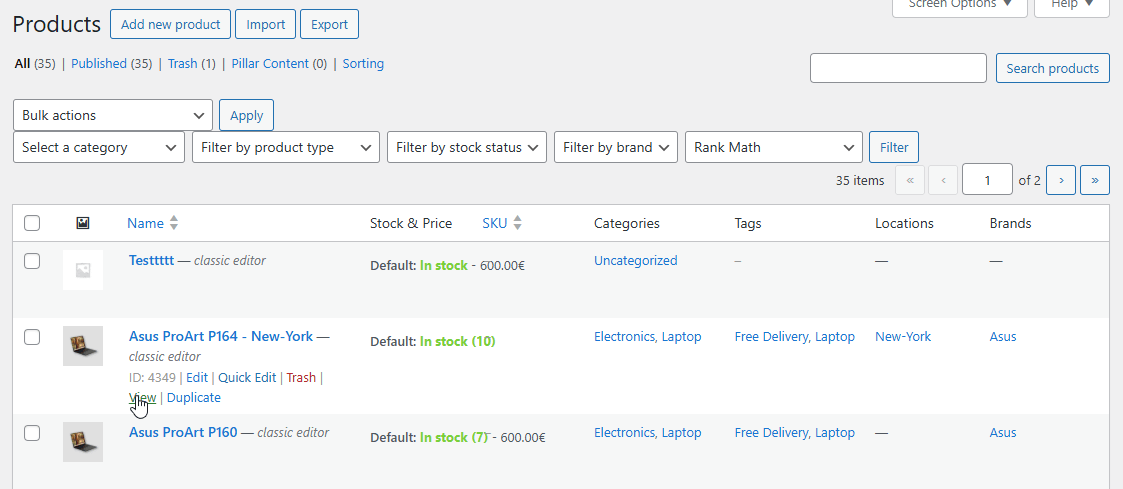
Go to Products → All Products and check that each product’s visibility is set correctly.
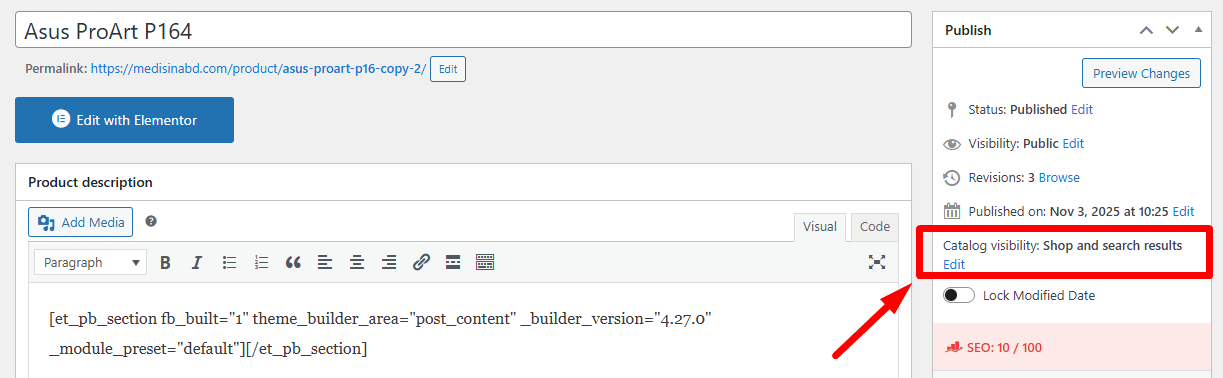
- Open any product from the list
- Locate the Catalog visibility option (right sidebar)
- Set it to Shop and Search Results
If a product is set to hidden or private, it will not appear in category filters or shop results.
Check Stock Status Configuration
Stock settings also affect whether products appear in filters.
- Make sure products are marked as In Stock
- If a product is out of stock, it may be hidden depending on your WooCommerce settings
Go to: WooCommerce → Settings → Products → Inventory
- Ensure “Hide out of stock items from the catalog” is unchecked if you want them visible
Quick Validation Step
After updating visibility and stock settings:
- Save changes
- Refresh your shop page
- Test the category filter again
Many WooCommerce category filter not working issues are resolved at this stage without needing deeper troubleshooting.
Verify Product Categories and Tags
After checking visibility, the next step is to confirm that your products are properly assigned to categories. Incorrect or missing category mapping is a common reason behind WooCommerce category filter not working, especially when filters return empty results.
Check Category Assignment
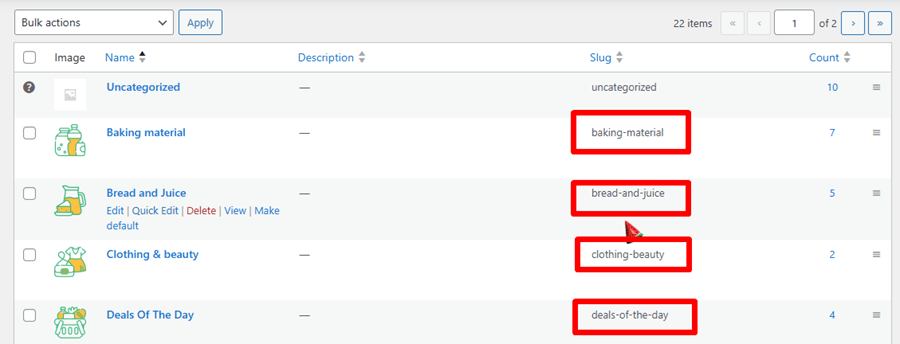
Go to Products → Categories and review your category structure.
- Make sure each product is assigned to at least one relevant category
- Open a few products and confirm the correct category is selected
- Avoid leaving products under Uncategorized unless necessary
If products are not linked to categories properly, filters cannot display them.
Verify Category Slugs
Category slugs play an important role in filtering and URL-based queries.
- Ensure each category slug is unique and clean
- Avoid duplicate or conflicting slugs
- Use lowercase and hyphen-separated format (example: mens-shoes)
Incorrect slugs can break filter queries and lead to missing results.
Fix Empty Filter Results
If your filter shows no products:
- It may indicate products were imported without category mapping
- Or categories were changed without updating product assignments
Reassign categories manually or use bulk edit to fix multiple products quickly.
Pro Tip for Consistency
Keep category naming and structure consistent across your store. Clean taxonomy helps WooCommerce process filters correctly and improves overall product discovery.
Why This Step Matters
WooCommerce filters rely heavily on taxonomy data (categories and tags). If this structure is broken or incomplete, the system cannot match products with filter queries, even if everything else is working properly.
Fix Permalink and URL Structure Issues
Broken or outdated permalinks are one of the most common reasons behind WooCommerce category filter not working. WooCommerce relies on URL structures to process filter queries, and even a small issue here can prevent filters from returning correct results.
Why Permalinks Affect Filters
WooCommerce uses permalinks to generate product and category URLs. If the structure is not updated properly, it can block filter requests, especially in dynamic or AJAX-based filtering systems.
This can lead to:
- Filters not loading results
- Incorrect product listings
- Empty category pages
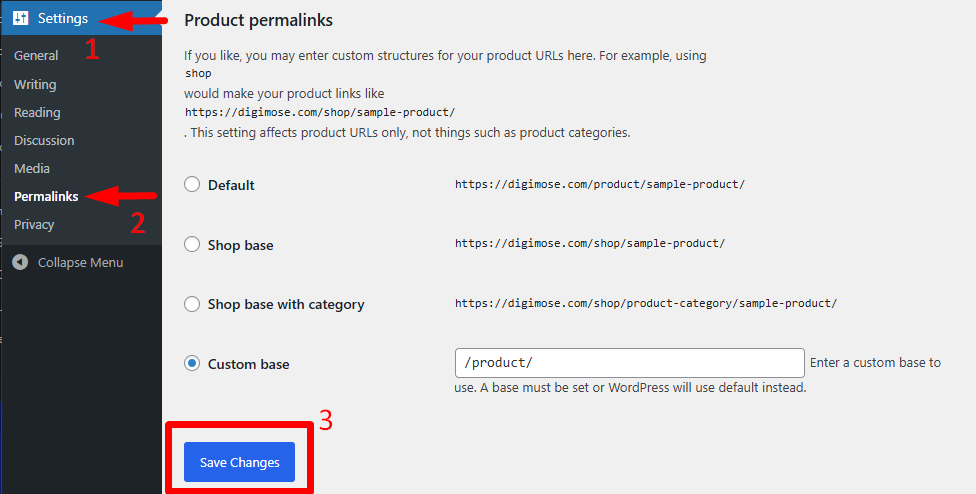
How to Fix Permalink Issues
Follow these simple steps:
- Go to Settings → Permalinks
- Do not change anything
- Click Save Changes
This action refreshes WordPress rewrite rules and fixes most URL-related issues instantly.
Quick Result Check
After saving permalinks:
- Refresh your shop page
- Apply the category filter again
- Check if products are now displaying correctly
In many cases, this step resolves filtering problems without any additional fixes.
When This Fix Is Critical
This step is especially important if:
- You recently changed your URL structure
- Imported products or categories
- Installed or updated plugins
- Experiencing issues with dynamic or AJAX filters
Why This Step Matters
Permalinks act as the backbone of how WooCommerce handles product queries. If they are not properly refreshed, filters cannot retrieve or display the correct data.
Clear Cache, CDN, and Browser Data
Caching can store outdated product queries and prevent filters from showing updated results. This is one of the most common reasons behind WooCommerce AJAX filter not working, especially when filters rely on real-time data.
Why Caching Breaks Filters
WooCommerce filters, particularly AJAX-based ones, fetch product data dynamically. When caching is active:
- Old filter results may be stored
- New products may not appear
- Filters may show incorrect or empty results
This often leads to situations where filters seem broken, even though the actual setup is correct.
Step-by-Step Cache Clearing
Follow these steps to remove all caching layers:
Step 1: Clear WordPress Cache
- Go to your caching plugin (WP Rocket, LiteSpeed, W3 Total Cache)
- Click Clear Cache / Purge All
Step 2: Purge CDN Cache
- If using a CDN like Cloudflare or SiteGround
- Clear or purge all cached files
Step 3: Hard Refresh Browser
- Press Ctrl + F5 (Windows) or Cmd + Shift + R (Mac)
- This reloads the page without cached data
Quick Test After Clearing Cache
Once all caches are cleared:
- Reload your shop page
- Apply category filters again
- Check if products now display correctly
If filters start working, the issue was cache-related.
Pro Tip for WooCommerce Stores
Exclude key WooCommerce pages from caching:
- Shop page
- Cart page
- Checkout page
This ensures filters always load fresh product data.
Why This Step Matters
Caching improves speed, but it can interfere with dynamic features like filters. Clearing and managing cache correctly ensures your store shows accurate, real-time results.
Test Plugin Conflicts (Especially Filter Plugins)
Plugin conflicts are a common reason behind WooCommerce AJAX filter not working. When multiple plugins try to control filtering, scripts can clash and prevent filters from loading or returning results correctly.
Why Plugin Conflicts Happen
WooCommerce filters depend on JavaScript, AJAX requests, and database queries. If another plugin overrides these functions or loads conflicting scripts, it can break filter behavior completely.
This may result in:
- Filters not responding
- Products not updating dynamically
- Empty or incorrect results
How to Identify Plugin Conflicts
Follow these steps to isolate the issue:
- Go to Plugins → Installed Plugins
- Deactivate all plugins except WooCommerce
- Activate your filter plugin again
- Test the category filter on your shop page
If the filter starts working, the issue is caused by a plugin conflict.
Find the Conflicting Plugin
- Reactivate plugins one by one
- Test the filter after each activation
- The plugin that breaks the filter is the source of the conflict
This method helps you quickly identify the exact problem without guessing.
Choose a Compatible Filter Solution
If you rely on advanced filtering, make sure your plugin supports:
- Clean AJAX requests without script conflicts
- Compatibility with popular WooCommerce themes
- Stable performance on large product catalogs
- SEO-friendly filter URLs
Safe Testing Tip
Use Health Check & Troubleshooting mode to test plugins without affecting live visitors. This allows you to debug safely while keeping your store active.
Why This Step Matters
Most filtering issues are not caused by WooCommerce itself but by third-party conflicts. Identifying incompatible plugins ensures long-term stability and prevents recurring filter problems.
Switch to a Default Theme for Testing
Sometimes the issue is not with WooCommerce or the filter itself, but with your active theme. Many themes override WooCommerce templates or scripts, which can break filter functionality and lead to WooCommerce category filter not working on the shop page.
Why Themes Affect Filters
WooCommerce filters rely on proper template structure and JavaScript execution. If your theme:
- Overrides WooCommerce template files incorrectly
- Uses outdated or conflicting JavaScript
- Modifies product query behavior
…it can prevent filters from loading or displaying results correctly.
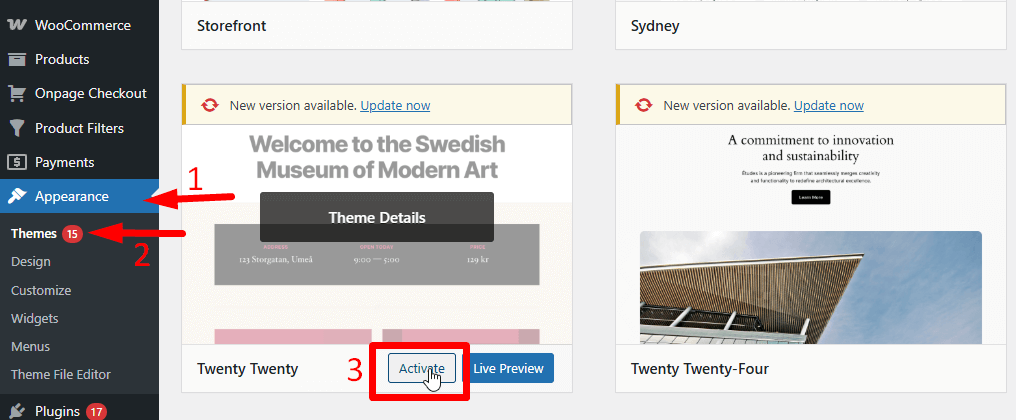
How to Test with a Default Theme
Follow these steps to isolate the issue:
- Go to Appearance → Themes
- Activate a default WooCommerce-compatible theme like:
- Storefront
- Twenty Twenty-Four
- Reload your shop page
- Test the category filter again
Result Interpretation
- If filters start working → The issue is caused by your theme
- If the issue remains → The problem is coming from another source
This simple test helps you quickly narrow down the root cause.
What to Do Next
If your theme is causing the issue:
- Update the theme to the latest version
- Check for compatibility with WooCommerce updates
- Contact the theme developer for a fix
- Compare overridden template files with WooCommerce defaults
Why This Step Matters
Theme conflicts are one of the most overlooked causes of filter issues. Testing with a default theme ensures your WooCommerce setup is working correctly at its core.
Regenerate Product Lookup Tables
WooCommerce uses lookup tables to quickly fetch and display products on the shop page. When these tables become outdated or corrupted, filters may fail to return results, leading to WooCommerce product filter not working, especially in stores with large catalogs.
Why Lookup Tables Affect Filters
Lookup tables store important product data such as:
- Categories
- Attributes
- Stock status
- Visibility
If this data is not updated properly, WooCommerce cannot match products with filter queries, which results in missing or incomplete filter results.
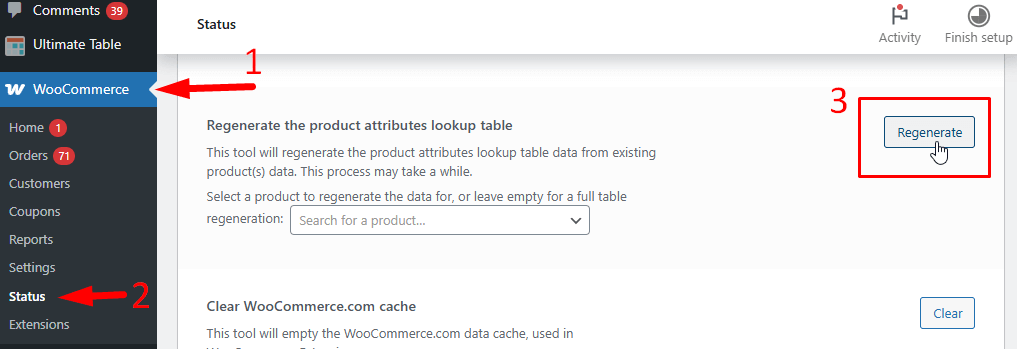
How to Regenerate Lookup Tables
Follow these steps to refresh your product data:
- Go to WooCommerce → Status → Tools
- Locate Regenerate product lookup tables
- Click Regenerate
- Wait until the process completes
This will rebuild product data and fix inconsistencies affecting filters.
Quick Test After Regeneration
Once the process is complete:
- Refresh your shop page
- Apply category filters again
- Check if products now appear correctly
This step often resolves visibility issues instantly.
When You Should Use This Fix
This solution is especially useful if:
- You recently imported products (e.g., WP All Import)
- Updated large amounts of product data
- Noticing filters missing products randomly
- Running a store with a large inventory
Why This Step Matters
Accurate product data is essential for filter functionality. If lookup tables are outdated, even correctly configured filters cannot display results properly.
Review Console Errors and Network Requests
If the issue still exists after basic fixes, it’s time to check the browser console. This step is especially useful when dealing with WooCommerce AJAX filter not working, as most dynamic filter issues are caused by JavaScript or network errors.
How to Check Console Errors
Follow these steps to inspect your store:
- Open your shop page
- Right-click and select Inspect
- Go to the Console tab
- Look for red error messages (such as 404 or 500 errors)
These errors often indicate broken scripts or failed requests.
Test AJAX Requests (Network Tab)
To go deeper:
- Open the Network tab in Developer Tools
- Apply a category filter on your shop page
- Check if the AJAX request:
- Returns an error
- Shows a blank response
- Fails to load
If the request fails, the filter cannot retrieve products.
Common Causes of AJAX Errors
- Minified JavaScript blocking requests
Optimization plugins may break filter scripts - Security plugins blocking requests
Tools like Wordfence can block AJAX calls - CORS or CDN restrictions
External services may prevent requests from completing
How to Fix These Issues
- Disable JavaScript minification temporarily
- Whitelist AJAX URLs in your security plugin
- Exclude WooCommerce scripts from optimization
- Clear CDN and browser cache after changes
Why This Step Matters
Modern WooCommerce filters rely heavily on AJAX and JavaScript. If these fail, the filter system breaks completely, even if all other settings are correct.
Prevention: Avoid WooCommerce Filter Issues in the Future
Once your filters are working, it’s important to keep them stable. Many cases of WooCommerce category filter not working happen again due to poor maintenance or conflicting updates.
- Keep WooCommerce and Plugins Updated: Always update WooCommerce, themes, and plugins regularly. Outdated components can break compatibility and affect filter performance.
- Avoid Using Multiple Filter Plugins: Running multiple filter plugins can create conflicts in queries and scripts. Stick to one reliable solution to maintain stability.
- Manage Cache Settings Carefully: Exclude shop, category, and filter-related pages from caching. This helps prevent issues like WooCommerce AJAX filter not working due to outdated cached data.
- Test Changes Before Going Live: Always test plugin or theme updates in a staging environment before applying them to your live store.
- Monitor Errors Regularly: Check console logs and error reports to catch issues early before they affect users.
Why Prevention Matters: A well-maintained WooCommerce setup reduces the chances of filter issues and ensures a smooth shopping experience for customers.
Best Way to Avoid Filter Issues in WooCommerce
If you frequently face filter problems, relying only on fixes is not enough. You need a stable filtering system built for performance and compatibility.
What to Look for in a Filter Solution
A reliable WooCommerce filter plugin should:
- Handle large product catalogs without slowing down
- Support real-time AJAX filtering
- Work smoothly with most WooCommerce themes
- Provide SEO-friendly filter URLs
- Avoid script conflicts with other plugins
Modern AJAX filter plugins allow users to filter products instantly without page reloads, improving user experience and conversion rates
Why This Matters
Many WooCommerce product filter not working issues come from poorly optimized or outdated filter systems. A well-built plugin ensures accurate product queries, smooth filtering, and better compatibility across themes and plugins.
Advanced solutions also allow filtering by categories, attributes, price, and more, helping users quickly find products and improving overall store usability
Smart Upgrade Approach
Instead of constantly troubleshooting:
- Choose a WooCommerce-specific filter plugin
- Ensure it supports AJAX filtering and clean URLs
- Use a solution that is actively maintained and compatible
👉 For example, plugins like Advanced AJAX Product Filters for WooCommerce or YITH WooCommerce Ajax Product Filter are widely used because they provide fast filtering, flexible customization, and strong theme compatibility
Where Your Solution Fits (Subtle Conversion Bridge)
If your store handles a large catalog or frequent updates, using a performance-focused filtering system becomes essential.
A solution like Dynamic AJAX Product Filters for WooCommerce (Plugincy) fits naturally here by offering:
- Fast AJAX filtering without page reload
- Clean, SEO-friendly filter URLs
- Compatibility with most WooCommerce themes
- Stable performance even with large product catalogs
👉 This reduces the chances of recurring issues like WooCommerce category filter not working and improves overall store experience.
Frequently Asked Questions (Optimized)
This section is optimized for Featured Snippets + AI Overview ranking.
Why is my WooCommerce category filter not working?
This usually happens due to caching issues, incorrect product visibility, missing category assignments, or plugin conflicts. Re-saving permalinks and clearing cache often fix the problem.
Why is WooCommerce filter not showing products?
Products may be hidden, out of stock, or not assigned to categories properly. Check visibility settings and category mapping to resolve this issue.
Why is WooCommerce AJAX filter not working?
This is commonly caused by JavaScript errors, caching conflicts, or plugin incompatibility. Checking console errors and clearing cache can help fix it.
How do I fix WooCommerce product filter not working on large stores?
Regenerate product lookup tables and use a filter plugin optimized for large catalogs to ensure accurate filtering results.
Can themes break WooCommerce filters?
Yes, some themes override WooCommerce templates or scripts, which can break filter functionality. Testing
Conclusion
Fixing the WooCommerce category filter not working issue becomes much easier when you follow a structured approach. Most problems are not complex and usually come from simple areas like product visibility, category setup, caching layers, plugin conflicts, or outdated data.
By checking each layer step by step, you can quickly identify what is causing the filter to fail and apply the right fix without unnecessary trial and error. This not only restores proper filtering but also improves how customers interact with your store.
For long-term stability, focus on maintaining a clean WooCommerce setup, avoiding unnecessary plugin conflicts, and using a reliable filtering system that supports modern features like AJAX and optimized queries. This helps prevent recurring issues and ensures your store performs smoothly as it grows.