
When shoppers land on your store, they trust the opinions of others before making a purchase. That’s why letting them browse by product ratings is so powerful. In this guide, you’ll learn how to set up and optimize a WooCommerce product filter by rating that improves user experience, builds trust, and helps boost your store’s conversions.
What Does a Rating Filter Mean in WooCommerce?
A rating filter in WooCommerce lets customers filter products based on average star ratings left by previous buyers. It’s commonly displayed as stars (e.g., ★★★★☆ & Up), allowing shoppers to view only products that meet a certain rating threshold.
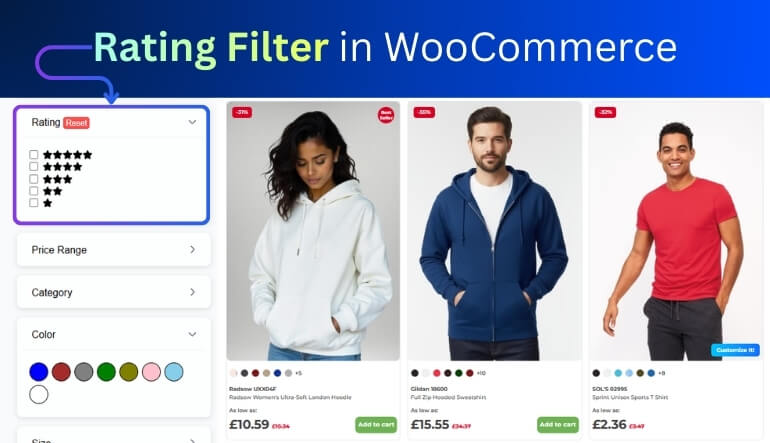
By default, WooCommerce stores product reviews and average ratings. When connected with a rating filter, those ratings become interactive—customers can instantly narrow their search to the most trusted items.
Average Rating vs Minimum Rating – Understanding the Logic
- Average Rating: Shows the exact average rating (e.g., 4.3 stars).
- Minimum Rating: Displays products rated above a certain threshold (e.g., “4 stars & up”).
Most store owners use the minimum rating model, since it’s more intuitive for buyers who simply want “highly rated” products.
Ratings vs Reviews vs Filtered Results
While reviews are qualitative comments, ratings provide measurable feedback. The rating filter converts those ratings into a navigational tool. Together, they offer social proof and product discovery in one seamless system.
Why Sorting and Filtering by Rating Matters for Your Store?
Modern shoppers are impatient; they want to find the best-reviewed products fast. A visible WooCommerce filter by rating improves both user satisfaction and credibility.
Credibility, Social Proof & Conversions
Displaying a rating filter tells customers your store values transparency. When shoppers can sort by 4-star or 5-star products, they spend less time comparing and more time purchasing. According to industry data, visible ratings can lift conversion rates by over 18%.
Common Mistakes When Using Rating Filters
- Hiding ratings on product listings: If customers can’t see stars, they won’t use the filter.
- Not enough reviews: Empty or new stores may show few results; encourage buyers to rate products.
- No structured data: A missing review schema means Google can’t display stars in search results.
Fix these issues before optimizing your filter layout.
How to Set Up a Product Filter by Rating in WooCommerce (No Code)
WooCommerce offers simple ways to add a star-rating filter either through the built-in widget or specialized plugins.
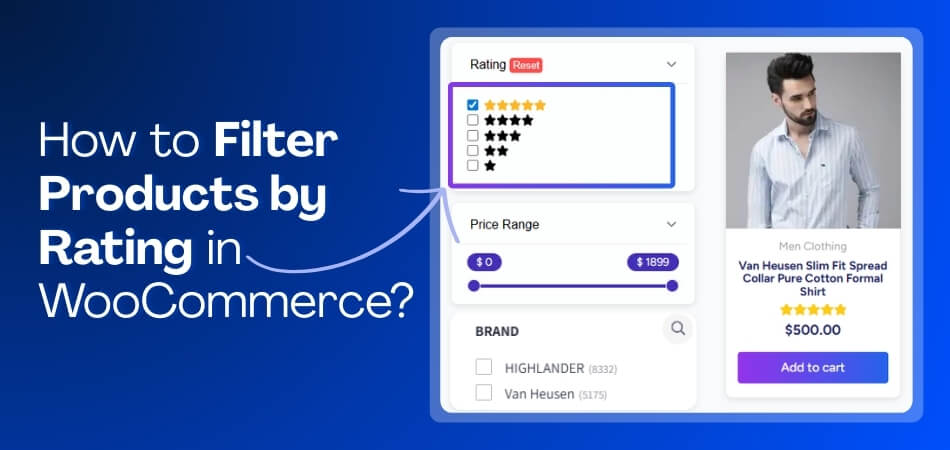
Using WooCommerce’s Built-In Rating Widget
- Go to Appearance → Widgets
- Add Product Filters to your shop sidebar or filter area.
- Disable or remove all filters except Rating.
- Save the settings and refresh your shop page.
Customers will now see clickable rating levels such as ★★★★★ & Up. Selecting one filter results in showing only items with equal or higher ratings.
This built-in widget is perfect for small stores needing a quick solution.
Installing a Plugin for Advanced Rating Filters
For better control, try a WooCommerce ajax product filter plugin that supports live updates, custom design, and multiple filter types:
- Dynamic AJAX Product Filters (Plugincy) – Adds star-based filtering with instant AJAX updates, great for large catalogs.
- WOOF – WooCommerce Products Filter – Allows combined filters (price, category, rating).
- Barn2 Product Filters – Optimized indexing for faster results, including rating filter integration.
Setup Steps:
- Go to Product Filters → Form Manage.
- Enable Rating (Show Rating) in the form options.
- Go to Product Filters → Form Style.
- Choose the rating style (stars, dropdown, etc.).
- Save changes and test on your store page.
Configuring Rating Filter Styles: Stars, Sliders, Dropdowns
- Star Display: Classic and instantly recognizable.
- Slider: Let users set a custom minimum rating (e.g., 3.5 stars).
- Dropdown: Ideal for compact layouts.
For best engagement, keep star icons visible and interactive.
Advanced Implementation: Custom Code & Logic for Rating Filters
Developers may want deeper customization using custom queries and AJAX functionality.
WP_Query for Rating Thresholds (≥ 4 Stars)
Use meta_query to filter products whose average rating meets your target:
$args = array(
‘post_type’ => ‘product’,
‘meta_query’ => array(
array(
‘key’ => ‘_wc_average_rating’,
‘value’ => 4,
‘compare’ => ‘>=’,
‘type’ => ‘NUMERIC’
),
),
);
$query = new WP_Query($args);
This code fetches only products rated 4 stars or higher. Integrate it into a custom template or shortcode for flexible use.
AJAX Rating Filter for Instant Results
AJAX allows users to apply rating filters without reloading the page. Products refresh dynamically, giving a faster, smoother shopping experience.
Benefits of AJAX Rating Filters:
- Instant result updates.
- Reduced server load from full-page reloads.
- Improved user retention—especially on mobile.
Most modern filter plugins, like Dynamic AJAX Product Filters, already include this capability.
Performance Tips: Large Catalogs & Indexing
- Use database indexing for _wc_average_rating meta keys.
- Limit visible rating options (e.g., “4 Stars & Up”).
- Combine with caching to reduce query time.
- Regularly re-sync product ratings to maintain accuracy.
SEO & Analytics Best Practices for Rating-Filtered Pages
URL Structure & Parameter Handling for Rating Filters
Each filter selection may create dynamic URLs (e.g., /shop/?filter_rating=4-up).
- Keep parameters clean and short.
- Use canonical tags to avoid duplicate content.
- Avoid indexing overly granular filter combinations.
Tracking Filter Usage & Conversion Impact
Set up Google Analytics events for rating filter interactions. Track how many visitors use the filter and how those sessions convert. This data helps refine both your product reviews and filter placement.
Avoiding Duplicate Content with Multiple Rating Filter Combinations
If users can apply several filters (rating + price + category), your site may generate near-duplicate pages. Mark filtered URLs with noindex, follow to preserve crawl budget while keeping user experience intact.
Mobile-First Design & Accessibility for Rating Filters
With most shoppers browsing on mobile, your filter design must adapt seamlessly.
Star Filter Placement & Touch-Friendly Design
- Use large, tappable star icons (minimum 44×44 px).
- Provide clear text labels like “4 Stars & Up.”
- Allow one-tap reset of selected filters.
Responsive Layouts: Sidebar vs Top Bar vs Slide-Out
- Sidebar: Works best for desktop.
- Top Bar: Fits minimalist themes.
- Slide-Out Panel: Ideal for mobile and tablet users.
Consistent placement helps shoppers find and reuse the filter easily.
Practical Examples & Case Studies of Rating Filters in Action
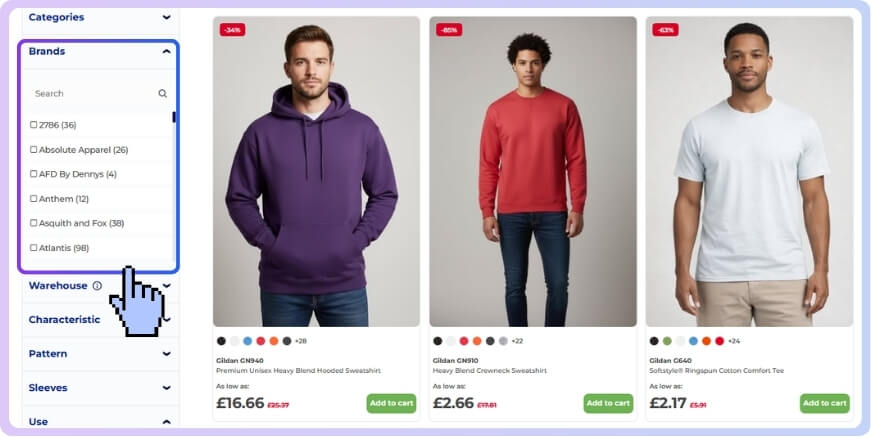
Example: Apparel Store Using “4★ & Up” Filter
A fashion retailer implemented a WooCommerce product filter by rating to highlight top-reviewed items. Within two months, conversion rates on filtered results pages grew by 19%.
Example: Electronics Store Using Rating + Price Tier Filter
An electronics site combined star ratings with price ranges (“4★ & Up Under $200”). The filter simplified comparisons, increasing average order value and user session length.
Troubleshooting Common Rating Filter Issues
Rating Filter Not Showing Correct Products
If high-rated products don’t appear:
- Confirm each product has approved reviews.
- Recalculate average ratings via database or plugin tools.
- Clear cache and test different logic operators (≥ vs =).
Slow Performance When Many Products or Rating Options
Large catalogs slow down queries. Enable plugin caching or server-side object caching. For extreme cases, limit filter scope to main categories only.
Plugin & Theme Conflicts
If AJAX filters break, disable minification plugins temporarily. Check the console for JavaScript errors and ensure your theme supports WooCommerce hooks (woocommerce_before_shop_loop).
Summary & Best Practice Checklist
Before you publish, review this quick list:
✅ Enable the WooCommerce Rating Filter widget or a premium plugin.
✅ Use “4 Stars & Up” as the default threshold.
✅ Optimize queries for performance.
✅ Add review schema for rich-snippet stars.
✅ Track analytics for filter usage.
✅ Design a mobile-friendly, accessible layout.
✅ Regularly verify rating data accuracy.
With these steps, your WooCommerce product filter by rating becomes a conversion-driven feature that shoppers love.
Make Rating Filters Work for You
Your customers already trust peer feedback—so make it effortless to find top-rated items. Add a WooCommerce product filter by rating today using Dynamic AJAX Product Filters or your favorite plugin. Create a smoother path from search to satisfaction and turn positive reviews into real sales growth.
Frequently Asked Questions (FAQs)
Rating filters make it easier for shoppers to focus on products with strong reviews, especially in large catalogs. These FAQs cover quick setup tips, common issues, and the best ways to customize rating filters without coding.
What Is A Woocommerce Product Filter By Rating?
A WooCommerce product filter by rating lets shoppers view only highly rated products based on customer reviews. It helps users quickly find trustworthy items and improves store credibility.
How Do I Add A Rating Filter In Woocommerce?
You can add a rating filter by using the built-in “Product Filter – Rating” widget under Appearance → Widgets, or install advanced plugins like Dynamic AJAX Product Filters.
Can Customers Filter Products By Specific Star Ratings?
Yes. Customers can choose to view products with a minimum rating, such as “4 stars and above.” This allows them to easily identify top-rated products across categories.
What Are The Best Plugins For Woocommerce Rating Filters?
Popular options include Dynamic AJAX Product Filters (Plugincy), WOOF Product Filter, and Barn2 Product Filters. These offer AJAX updates, responsive layouts, and support for multiple filter types.
Does Filtering By Rating Affect Website Speed?
Not if optimized properly. Using AJAX-based plugins and caching reduces page reloads and ensures rating filters load fast, even with large product catalogs.
How Can I Customize The Design Of A Rating Filter?
You can display ratings as stars, sliders, or dropdowns. Many plugins also allow you to adjust color, size, and position to match your store’s theme and design.
Is It Possible To Combine Rating Filters With Other Filters?
Yes. You can combine rating filters with price, category, or attribute filters for a refined product search. This layered navigation improves user experience and engagement.
Do Rating Filters Help Seo?
Yes. Properly configured rating filters improve UX and engagement. Use canonical tags, structured data, and avoid indexing filter parameters to prevent duplicate content issues.
How Do I Fix Rating Filters Showing Incorrect Results?
Check if products have approved reviews, clear site cache, and verify filter logic (e.g., “≥ 4 Stars”). Plugin reindexing can also resolve product mismatch issues.
Is Coding Required To Create A Rating Filter In Woocommerce?
No. You can use widgets or plugins without coding. However, developers can use WP_Query or custom shortcodes for advanced rating logic or custom layouts.