
Customers expect smooth product discovery. When your store sells multiple variations, letting buyers filter items by attributes such as color, size, or material can make shopping intuitive. In this guide, you’ll learn how to filter products by attribute in WooCommerce with the right setup and optimization. That will improve user experience, speed navigation, and drive conversions.
What Product Attributes Are & Why They Matter?
Product attributes define your item’s characteristics, such as color, size, weight, brand, or material. These values let shoppers find exactly what they want. Filtering by attributes allows them to refine results within seconds.
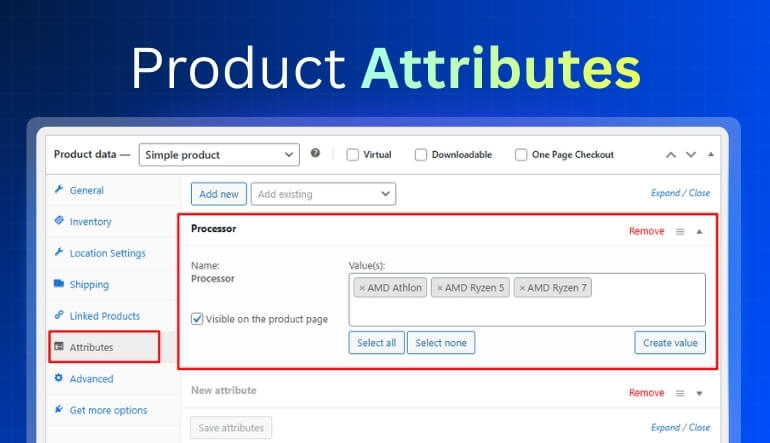
Global Attributes vs Custom Attributes
- Global Attributes are created under Products → Attributes and reused across multiple products.
- Custom Attributes exist only within a single product.
Use global attributes if you plan to build store-wide filters; they’re easier to manage and consistent across products.
Attributes vs Categories vs Tags
- Categories organize products broadly (e.g., Men’s Shoes).
- Tags highlight special traits (Best Seller, Eco-friendly).
- Attributes describe variations (Size 10, Red, Cotton).
Together they form WooCommerce’s product-filtering foundation.
Benefits of Allowing Customers to Filter by Attribute
Shoppers dislike endless scrolling. Attribute filters help them narrow results instantly, for instance, selecting “Blue + Medium” displays only relevant shirts. This quick navigation increases satisfaction and lowers bounce rates.

Common Mistakes When Using Attribute Filters
- Using Custom Instead of Global Attributes: Custom attributes do not work well with filters and often break consistency across products.
- Too Many Overlapping Options: Clutters the sidebar and makes it harder for users to decide.
- Unclear Attribute Names: “Color1” and “Color2” confuse users.
Stick to simple, meaningful attribute terms and display only popular filters.
How to Set Up Attribute Filters in WooCommerce (No Code)
Using the Built-in Widget / Block
- Go to Products → Attributes.
- Create a global attribute, such as Color or Size.
- Open the attribute and add terms (values) like Red, Blue, Small, or Large.
- Edit your products and assign those attributes to each product.
- Save the product changes.
WooCommerce will now show an attribute filter where customers can pick one value to refine products.
Creating Filters Using WooCommerce Attribute Filter Plugins
If you need advanced options like multiple selection, AJAX refresh, or mobile optimization, install a plugin that supports advanced Ajax product filters for WooCommerce, such as:
- Dynamic AJAX Product Filters (Plugincy): Adds instant, live attribute filtering with clean URLs and responsive layouts.
- WOOF Product Filter: Supports multi-attribute logic, sliders, and color swatches.
- Barn2 Product Filters: Includes smart indexing for lightning-fast queries.
Setup Steps:
- Install and activate your chosen plugin.
- Go to Product Filters → Form Manage.
- Enable Show Attributes to display attribute filters in the filter form
- Choose the attributes you want to show, such as color or size.
- Configure style (checkboxes, swatches, dropdown).
- Save and test your filter on the shop page.
Choosing Filter Styles: Checkboxes, Dropdowns, Swatches
- Checkboxes: best for selecting multiple attributes (e.g., “Cotton” + “Polyester”).
- Dropdowns: space-saving, ideal for mobile views.
- Swatches: visually appealing for color or pattern choices.
Consistent styling builds trust and usability.
Advanced Setup: Custom Logic, Multiple Attributes & AJAX
Using Multiple Attribute Filters & AND/OR Logic
By default, WooCommerce treats each filter separately. Advanced plugins or code let you control logic:
- AND logic: shows products matching all selected attributes (e.g., “Blue AND Large”).
- OR logic: displays products matching any selected attribute (e.g., “Blue OR Red”).
Balanced logic helps prevent overly narrow or broad results.
AJAX Filtering for Instant Results
AJAX eliminates full-page reloads when filters change. When customers pick an attribute, products update instantly, improving engagement and lowering load times.
Benefits of AJAX Filtering:
- Real-time updates → smoother UX.
- Lower server requests than reloading.
- Higher conversion rates due to instant feedback.
Dynamic AJAX Product Filters and WOOF both include built-in AJAX support.
Performance Tips for Stores with Large Catalogues
- Use indexed database queries to reduce load.
- Cache filter results if products rarely change.
- Limit visible attribute values (perhaps the top 10 popular colors).
- Combine AJAX with lazy loading for the best speed.
SEO & URL Best Practices With Attribute Filters
Clean Filter URLs & Canonicals
Each filter selection creates a unique URL (e.g., /shop/?filter_color=blue&filter_size=medium).
- Keep parameters short and readable.
- Use canonical tags to point to the main page.
- Avoid indexing deep filter combinations.
Clean URLs help Google crawl your site without duplicate content penalties.
Avoiding Duplicate Content from Filtered Pages
Dynamic filter URLs can create hundreds of nearly identical pages.
Add noindex, follow to parameterized URLs, and define canonical paths to primary category pages.
Tracking Filter Usage & Conversion Metrics
Set up Google Analytics events to track filter clicks and conversion rates.
This data reveals which attributes (shoe size, color, material) influence sales most, so you can refine your catalog structure.
Mobile-First Design & Accessibility for Attribute Filters

Responsive Layouts: Sidebar vs Top Bar vs Slide-Out
- Sidebar: best for desktop stores with ample space.
- Top bar: ideal for clean themes or one-page layouts.
- Slide-out panel: user-friendly for mobile filters that collapse into a drawer.
Accessibility, Touch Controls & Usability
Design for all users:
- Ensure color contrast for swatches.
- Keep tap targets ≥ 44 × 44 px.
- Label checkboxes clearly with attribute names.
- Provide a “Clear All Filters” button to reset selections.
Practical Examples & Case Studies of Attribute Filtering
Example: Fashion Store – Size & Color Attributes
A clothing brand uses size and color filters to simplify product discovery. After enabling AJAX attribute filters, session duration increased by 24% and bounce rate dropped by 18%.
Example: Electronics Store – Brand & Feature Attributes
An electronics retailer implemented filters for “Brand”, “Storage Capacity”, and “Warranty”. Users can now combine attributes like “Samsung + 128GB”, leading to a 15% boost in cart completion.
Troubleshooting Common Attribute Filter Issues
Filters Not Showing Correct Items
- Verify products actually use the attribute terms.
- Re-save permalinks ( Settings → Permalinks → Save Changes ).
- Clear the plugin or site cache.
- Rebuild the attribute index if the plugin supports it.
Slow Performance or Broken Layouts
- Limit the number of filters loaded on one page.
- Disable unnecessary AJAX calls in plugin settings.
- Check theme compatibility with WooCommerce hooks (woocommerce_before_shop_loop)
Plugin Conflicts & Compatibility Problems
When multiple filter plugins run together, JavaScript conflicts can occur. Test each plugin individually and disable duplicates. Always keep WooCommerce and themes updated.
Summary & Best Practice Checklist
✅ Create global attributes for consistent filtering.
✅ Use clear, user-friendly names for attribute terms.
✅ Install a WooCommerce attribute filter plugin with AJAX support.
✅ Optimize database performance and cache filter results.
✅ Keep filter UI mobile-friendly and accessible.
✅ Monitor analytics to measure filter engagement and sales impact.
Implementing these steps makes your WooCommerce filter products by attribute not just functional but a key part of your store’s conversion strategy.
Take Your WooCommerce Filters to the Next Level
Empower customers to find exactly what they want faster. Install a powerful WooCommerce filter by attribute plugin like Dynamic AJAX Product Filters today and watch your sales grow as shopping becomes simpler and more personalized.
Frequently Asked Questions (FAQs)
Attribute filters often bring up questions during setup, customization, or troubleshooting. The answers below cover the most common points to help you use WooCommerce attribute filters correctly and with confidence.
What Does The WooCommerce Filter By Attribute Do?
The WooCommerce filter by attribute lets customers refine products using options like color, size, or brand. It helps shoppers find exactly what they need faster, improving user experience and sales.
How Can I Add An Attribute Filter In Woocommerce?
You can add an attribute filter using the built-in Product Filter – Attributes widget under Appearance → Widgets or install plugins like Dynamic AJAX Product Filters for more flexibility.
What Is The Best Plugin For Woocommerce Attribute Filters?
Top-rated plugins include Dynamic AJAX Product Filters (Plugincy), WOOF Product Filter, and Barn2 Product Filters. These tools support AJAX updates, multiple attributes, and customizable designs.
Can I Use Multiple Attribute Filters At Once?
Yes. You can enable multiple attribute filters, allowing customers to select options like “Red” and “Large” together. Choose AND or OR logic to control how results are displayed.
Does Adding Attribute Filters Slow Down My WooCommerce Store?
Not if configured properly. Using AJAX-based filters, caching, and indexed queries keeps filtering fast, even for large product catalogs. Proper optimization prevents performance issues.
Are Woocommerce Attribute Filters Seo-Friendly?
Yes. Attribute filters can be SEO-friendly if you use clean URLs, canonical tags, and noindex rules for dynamic filter pages. This ensures search engines don’t flag duplicate content.
How Do I Customize The Design Of Attribute Filters?
You can display attributes as dropdowns, checkboxes, or color swatches. Most WooCommerce attribute filter plugins let you adjust styling, colors, and positions to match your theme.
Why Are My Attribute Filters Not Showing Products Correctly?
Check that attributes are global (not custom) and assigned properly to products. Re-save permalinks, clear cache, and rebuild the filter index if using a plugin.
Can I Combine Attribute Filters With Price Or Category Filters?
Absolutely. Combining attribute filters with price, brand, or category filters provides layered navigation, helping customers refine results even further for quicker decision-making.
Do I Need Coding Knowledge To Set Up WooCommerce Attribute Filters?
No. Most setups require no coding. Plugins like Dynamic AJAX Product Filters offer visual interfaces, shortcodes, and widgets that handle the filtering automatically.